Operation Failed With Error 0x0000011b for Windows 10 & 11 in 2026

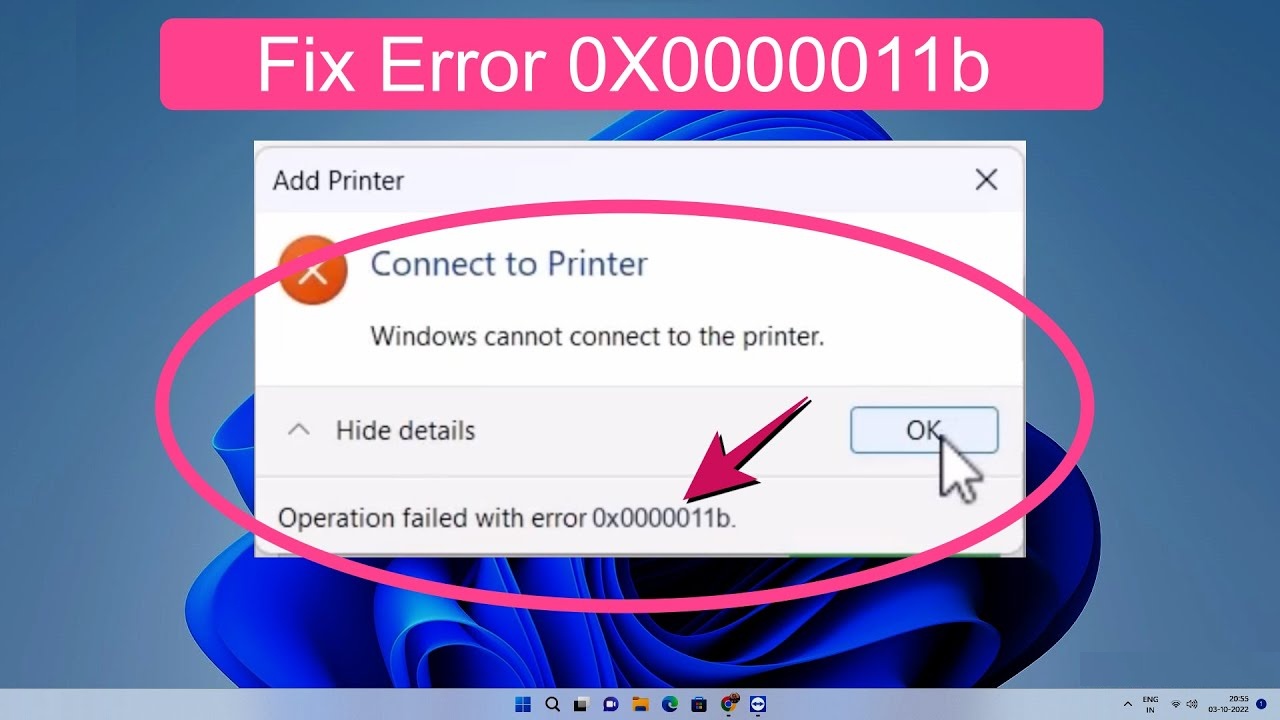
If you keep seeing the message Operation Failed With Error 0x0000011b while trying to add or use a shared printer on Windows 10 or Windows 11, you are not alone. This issue usually shows up after a security update changes how Windows handles network printing. The good news is that you can fix it with a few reliable steps. In this guide, you will learn what causes the error, how to solve it, and how to prevent it from showing up again.
Disclaimer: The methods in this guide involve making changes to system settings and, in some cases, the Windows Registry. Always create a backup or restore point before modifying system files. Follow these steps carefully and at your own discretion.
Understanding Error 0x0000011b in Windows 10 and Windows 11
Nothing is more frustrating than trying to print a document only to be greeted with a cryptic message that leaves you staring at your screen. Error 0x0000011b usually appears when connecting to a shared network printer. You may see messages such as
Operation could not be completed, or Operation Failed With Error 0x0000011b.
So what does it actually mean? At its core, this error is related to how Windows secures connections between your computer and the printer. Microsoft has pushed updates that tighten security and block older insecure connection methods. While this is good fo,r safety,y it also makes older printers stumble.
If your printer works fine one day and suddenly stops the next, it is usually because your system installed an update in the background.
To check out the causes for this “Operation Failed Windows cannot hook up with the printer error 0x0000011b”.
What Causes Operation Failed With Error 0x0000011b
There are a few common triggers behind this error. Understanding them helps you fix the issue faster.
1. Recent Windows Security Updates
Many users started seeing this error after specific updates that hardened the way Windows handles network printing. These updates attempt to block vulnerable connections. If your printer or computer uses older encryption, Windows may reject the connection.
2. Printer Server Issues
If your printer is shared from another computer, the host machine might be the real source of the problem. A wrong setting on the server side can lead to connection failures on all clients.
3. RPC Encryption Problems
Windows uses RPC encryption for secure communication. When something does not match between the printer and the computer, the system simply throws error 0x0000011b.
4. Incorrect Registry Configurations
Sometimes registry entries related to printer security are missing or misconfigured. The system then fails to validate the connection.
5. Corrupted Printer Drivers
A bad or outdated driver can interfere with the connection and trigger an error even if all security settings look correct.
Causes of operation failed with error 0x0000011b
The reason for the above error is the latest security patch applied by Microsoft. There are different versions of the update for different Windows operating systems. Some of them are below:
- (KB5005565)
- (KB5005573)
- (KB890830)
- (KB5005565)
- (KB5005030)
If you can’t find the updated versions in your system in the above list, try looking for the following recent Windows update versions. Once found, nd remove them one by one and see if the error goes.
- 12-09-2021 – KB2310138 (Version 1.349.599.0)
- 14-09-2021 – KB2310138 (Version 1.349.704.0)
- 15-09-2021 – KB2310138 (Version 1.349.766.0)
- 15-09-2021 – KB890830 (v5.93)
When the update was released, Microsoft noted:
“This security update includes quality improvements. Among the notable changes are the following: changes in the default privilege requirement to put in drivers when using Point and Print. After installing this update, you want to have administrative privileges to install drivers. If you’re using Point and Print, see KB5005652 (Changing Default Behavior for Dots and Print).”
Read More: Japanese Locale Emulator Windows 11 Free
How to Fix Windows Cannot Connect to the Printer Error 0x0000011b
To solve the Printer Error 0x0000011b quickly (and temporarily), we will uninstall this patch, as we explain below. To permanently solve the problem (leaving the security patch), we must modify the policy that applies to all computers in the domain.
Quick and Temporary Solution to operation failed with error 0x0000011bWindows 10
To fix the error, a minimum of temporary is enough to uninstall the KB5005613 patch for W2012 or the KB5005030 patch for W2016 / 2019 or other versions listed above. To uninstall a pat, ch we’ll access the instrument panel, to «Programs» – «Programs and features» – «Updates installed».
It will show us an inventory of Windows security updates installed on the system. Among them, there should be the «Security Update for Microsoft Windows (KB50We’ll/KB5005565 or the other patch supported by your system), we’ll click on the proper. Click on the mouse thereon, and we will choose« Uninstall »:
It will ask us for confirmation to carry out the uninstallation, and we will press «Yes»:
Once uninstalled, it’s going to ask to restart the system (in our case, it was not necessary). And without doing anything, the printers will work again.
However, this solution shouldn’t be final, since Windows servers and other Windows versions must be updated with the newest patches for security. And precisely this patch that we’ve uninstalled solves some security problems with print queues. Therefore,s possible, the update must be reinstalled, and therefore the definitive solution shown below must be applied.
Operationolution for Windows cannot connect to the printer. Operation failed with error 0x0000011b
Once the OS has been updated with all the patches so far, we will either disable this new behavior (not recommended for security reasons) or set the policy to configure and permit clients to selectively use Point and Print (only for one or multiple servers). Here’s the way to do both.
If we would like to disable this new behavior (not recommended) in Windows for print servers and Point and Print (connect printers from a print server to a client without having the drivers, which can be downloaded from the print server itself), within the Windows Server print server, we’ll access the configuration registry (Regedit), we’ll access the key:
“HKEY_LOCAL_MACHINE\System\CurrentControlSet\Control\Print”, add DWORD RpcAuthnLevelPrivacyEnabled = 0. Restart the Print Spooler, and you should be able to print.
When the Registry DWORD is set to RpcAuthnLevelPrivacyEnabled=1, Windows encrypts RPC communication with network printers and/or print servers. Performing the above is much faster than uninstalling the KB that was applied.
Thanks to Windows user BBaker3 for providing this fix.
We hope these solutions will help your operation fail with error 0x00001b.
Some Other Methods To Solve the operation failed with error 0x000011b
Way-1: Uninstall KB5005565
The simplest method to repair this printer error is to uninstall the cumulative update from your computer. You’ll follow these ways to uninstall the patch – from Settings and use the prompt on your PC. Let’s dive into it-
1. Using Settings
- Press the Windows+I keys on your computer.
- Click on Windows Update from the left pane of the Settings app.
- Go to the proper section and choose Update history.
- From the subsequent page, click on Uninstall updates.
- The Installed Updates Window will pop up from the instrument panel.
- Right-click on KB5005565 and choose “Uninstall”.
- Click Yes on the confirmation prompt.
- Give a little time, and after the uninstallation, reboot your PC.
- Check if 0x0000011b still appears on printing.
2. Via command prompt
- Click the Search icon on the taskbar.
- Type cmd.exe.
- Press Ctrl + Shift + Enter.
- Select the Yes option. A UAC dialog shows up.
- This will open the Command Prompt as administrator.
- Type the command – wusa /uninstall /kb:5005565.
- Hit Enter and click Yes if you are asked for the removal.
3. Set the static IP address for the printer
Another solution to the 0x0000011b error code that appears after installing KB5005565 on Windows 10 21H1, 20H2, and 2004 is manually setting the IP address of the printer. Several people complain that the Network printer isn’t working in this case, and manually configuring the IP has worked for several. So follow –
- Click Start and select Settings.
- Next, click on Devices from the app.
- Select – Printers & scanners.
- Move to the right pane and click on +Add a printer or scanner.
- After scanning for a while, the Settings page will show a link – The printer I want isn’t listed.
- Now, click this link.
- ‘Add a printer’ window will appear.
- Check the option – Add a printer using a TCP/IP or hostname.
- You need to click Next.
- On the coming wizard, type the Hostname or IP address of the printer and click “Next”.
- The system will contact the printer and show its name.
- If you want, you can change the name. Again, click on Next.
- In case other people use this device, check the option saying – Share this printer so that others on your network can find and use it.
- Otherwise, select – Do not share this printer and click Next.
- Now, you can check your device by clicking Print a test page.
- Click – Finish.
In case you have any problem finding the IP address of the printer, then –
- Go to Control Panel> Devices and Printers small or large icons view).
- Right-click on the printer and select Properties.
- A pop-up will open and go to the Location field.
- This will have the IP address inside.
Additional workarounds
However, the above 2 ways are the main solutions to the printer error 0x0000011b that occurred due to KB5005565 cumulative update in Windows 10 19044.1237, 19043.1237, 19042.1237, and 19041.123, but you can try a few more fixes. Let’s see ahead –
4. Run the Printer troubleshooter
The printer troubleshooter is a built-in fix-it tool to detect and repair printing problems on Windows 10. Until Microsoft officially confirms this bug, you should give a try to this troubleshooting tool –
- Right-click on Start and select Settings.
- Go to the right pane of the app and move down.
- Click – Troubleshooter.
- Select – “Other troubleshooters”.
- Next, click Run in the Printer section.
- The tool will start detecting problems by checking the spooler service and repairing them accordingly.
5. Check Print Spooler service
This service handles the printing operations in Windows, and when it is stopped or not correctly configured, the print jobs can not be performed. Therefore, it is relevant to check the status of the Spooler service. Although this article might also help- How to Disable/Enable Print Spooling Service Windows 10, see the instructions below –
- Press – Win+R.
- Type – Service. msc.
- On the Services window, go to Print Spooler.
- If it is showing “Running” and “Automatic” in the Status and Startup type columns, then it is perfect.
- Otherwise, double-click on Print Spooler.
- On the pop-up that appears, click the drop-down for Startup type and select Automatic.
- Click on Start under Service status.
6. Make sure that the system has installed the latest printer driver
Microsoft has come up responditoout the possible malfunctions for network printers and print servers caused by the newest cumulative update and suggested having the foremost recent driver version installed. The corporate says to use an equivalent version of the print driver on the print client and, therefore,e the print server. This issue is going to be solved externally by managing the print drivers in your environment. Still, if the difficulty persists, then contact the OEM support means the manufacturer’s support.
- Right-click on – Start from the taskbar.
- Select – Device Manager.
- On the application, find Printer or Print queues.
- Double-click on the device to expand the drivers’ list.
- Now, right-click on the driver for the currently running device.
- Next, select Update driver.
- Click on the option – Search automatically for driver.
If this method doesn’t fix Windows cannot connect to the printer with the 0x0000011b error code, then go to the manufacturer’s website. Find the latest printer driver there, download it, install the same manually, and reboot the PC.
Below are some more ways to fix the issue
1. Uninstall the Windows Update That Caused the Error
If the issue started recently, there is a good chance an update triggered it. Removing that update often resolves the problem instantly.
Steps
Open Settings
Go to Update and Security
Select View Update History
Click Uninstall Updates
Look for the latest cumulative update that was installed around the time the issue started. ted
Uninstall the update and restart your computer
This usually works when the error appeared suddenly after Patch Tuesday.
2. Add a Registry Entry to Disable Enhanced RPC Encryption
If uninstalling the update does not work or you want to keep security features enabled, you can manually adjust the registry. This method is very effective for shared printers.
Steps
Open Run and type regedit
Navigate to
HKEY_LOCAL_MACHINE System CurrentControlSet Control PrinRight-clickck on the Print folder and select N, ew then DWORD 32-bitbit Value
Name it RpcAuthnLevelPrivacyEnabled
Set its value to 0
Restart your computer and try the printer again
This trick essentially tells Windows to relax the strict encryption requirement.
3. Update or Reinstall Printer Drivers
Outdated or corrupted drivers can break the printing process, especially after system updates.
Steps
Open Device Manager
Expand PrinterRight-clickck your printer and select Update Driver
If that does not he, choose Uninstall Dev, ice then reinstall the latest driver from the manufacturer’s website. ite
This refreshes the connection rules between Windows and your printer.
4. Use the Printer IP Address Instead of Network Discovery
If Windows refuses to connect automatical, connecting directly to the printer’s IP address can bypass the issue.
Steps
Open Control Panel
Go to Devices and Printers
Select Add a Printer
Choose Add a Printer Using TCP IP Address
Enter the printer IP address
Follow on-screenreen steps
This method works well for older printers that struggle with modern security updates.
5. Turn Off Printer Sharing Encryption Requirement
In some systems, Windows forces encryption on shared printers, which can block older devices.
Steps
Open Control Panel
Go to the Network and Sharing Center
Select Change Advanced Sharing Settings
Scroll to File and Printer Sharing
Turn off the option that requires 128-bit encryption
Save changes and try again
This simple change can instantly restore printing for many users.
6. Restart Print Spooler Services
The print spooler manages all printing tasks. If it becomes stuck or corrupted, errors can appear.
Steps
Open Run and type services.msc
Find Print Spooler, right-click, and select Restart
Try printing again
Sometimes all it takes is a quick reset.
7. Reset Printer Sharing Settings on the Host Computer
If the printer is shared from another PC, he problem may be there on your machine.
Steps
On the host computer, open Settings
Go to Bluetooth and Devices
Click Printers and Scanners
Remove the shared pri,nter then add it again
Enable sharing and reconfigure permissions
Once the host resets its settings, things client computers usually work fine.
8. Try Using the Microsoft Printer Troubleshooter
Windows built-in troubleshooter that can detect configuration conflicts.
Steps
Open Settings
Go to Troubleshoot
Select Other Troubleshooters
Click Run next to Printer
While not perfect, it sometimes resolves simple misconfigurations.
9. Check Firewall and Network Permissions
A blocked port or restricted rule can cause error 0x0000011b.
Checklist
Make sure File and Printer Sharing is allowed in Windows Firewall
Verify that the printer is discoverable in your network
Confirm that both devices are on the same local network
Disable any VPN while troubleshooting
Network security tools can sometimes interfere without you realizing it.
10. Upgrade Your Printer Firmware
If none of the software solutions work, the issue may be with outdated firmware.
Steps
Visit the print manufacturer’s website
Search for firmware updates
Follow the instructions to update the device
Firmware updates often include compatibility fixes for newer versions of Windows.
How to Prevent Error 0x0000011b in the Future
Fixing the issue is great, but preventing it from returning makes your setup more stable. Here are a few tips.
1. Keep Drivers Updated Regularly
Outdated drivers are often the weak link. Updating them prevents many connection problems.
2. Avoid Unsupported Printer Sharing Methods
Older printers that rely on outdated protocols may continue to fail. Consider upgrading if the device is very old.
3. Set Up a Dedicated Network Printer Instead of USB Sharing
Using a standalone network printer reduces dependency on another PC and avoids many of these issues entirely.
4. Allow Secure Connections in Firewall and Network Settings
Modern devices expect encryption. Allowing these settings helps ensure compatibility.
5. Install Windows Updates Carefully
Before installing, check if a known printing issue is being reported online. Sometimes delaying an update for a few days can save you a headache.
Frequently Asked Questions
1. Why does Windows show error 0x0000011b when connecting to a shared printer
This error appears due to enhanced RPC encryption rules that Microsoft introduced in recent updates. When your printer or computer cannot match the required encryption level, the connection fails.
2. Will disabling the RpcAuthnLevelPrivacyEnabled registry value reduce security
It slightly lowers the encryption strictness for printer sharing, but it does not expose your system to major risks. It simply restores compatibility for older printers.
3. Can I fix this error without touching the registr?
Yes, you can try uninstalling updates using the printer IP address, restarting the printer,u drivers, or resetting the sharing settings.
4. Do I need to remove Windows updates permanently
Not always. In many cases, resetting the drivers or adjusting the settings resolves the issue without removing updates.
5. Is it better to upgrade to a network printer to avoid this error
If your current printer is very old, a network-enabled model is usually more reliable and avoids these compatibility issues.
6. Why does the error appear after every Windows update
Because each update may tighten security controls. If your printer uses an older protocol, will it let ibreakak again until settings are adjusted?
7. Does this error affect both wired and wireless printers
Yes, the issue is related to encryption and sharing, not the type of physical connection.
Conclusion
Operation Failed With Error 0x0000011b can feel like a dead-end, nd especially when you need to print something fast. The issue usually comes down to mismatched security settings between Windows and your printer. The fixes in thisguidee from registry adjustments to driver tests, can help you get back on track without wasting hours searching the web. While the issue is tied to Windows security upes the solutions are simple enough for anyone to follow.
With the right NGS, your printer can work again, a nd you can avoid this error in the future. If your printer is old, consider upgrading to even better compatibility with Windows 10 and Windows 11.